
You drop $40,000 on a custom enclosure, a commercial 4K laser projector, and a top-tier launch monitor. You step up to tee off on a high-fidelity custom course, make contact, and suffer a jarring 30-millisecond visual disconnect before the ball renders on screen.
Look up the GSPro PC requirements 2026, and you’ll find a developer baseline that is technically accurate—and functionally useless for a premium installation.
You are not building a living-room gaming console. You are architecting a real-time, high-throughput industrial rendering engine.
Stop Treating Your $30K Simulator Like a Desktop Gaming Rig
Desktop gaming monitors hide micro-stutters through small surface areas and adaptive sync technologies. Projecting a physics-based simulation onto a 16-foot impact screen immediately exposes frame-pacing flaws to the naked eye.
The human brain is hypersensitive to physics timing. When your physical club strikes the ball, any visual latency over 15 milliseconds breaks immersion and corrupts swing tempo analysis.
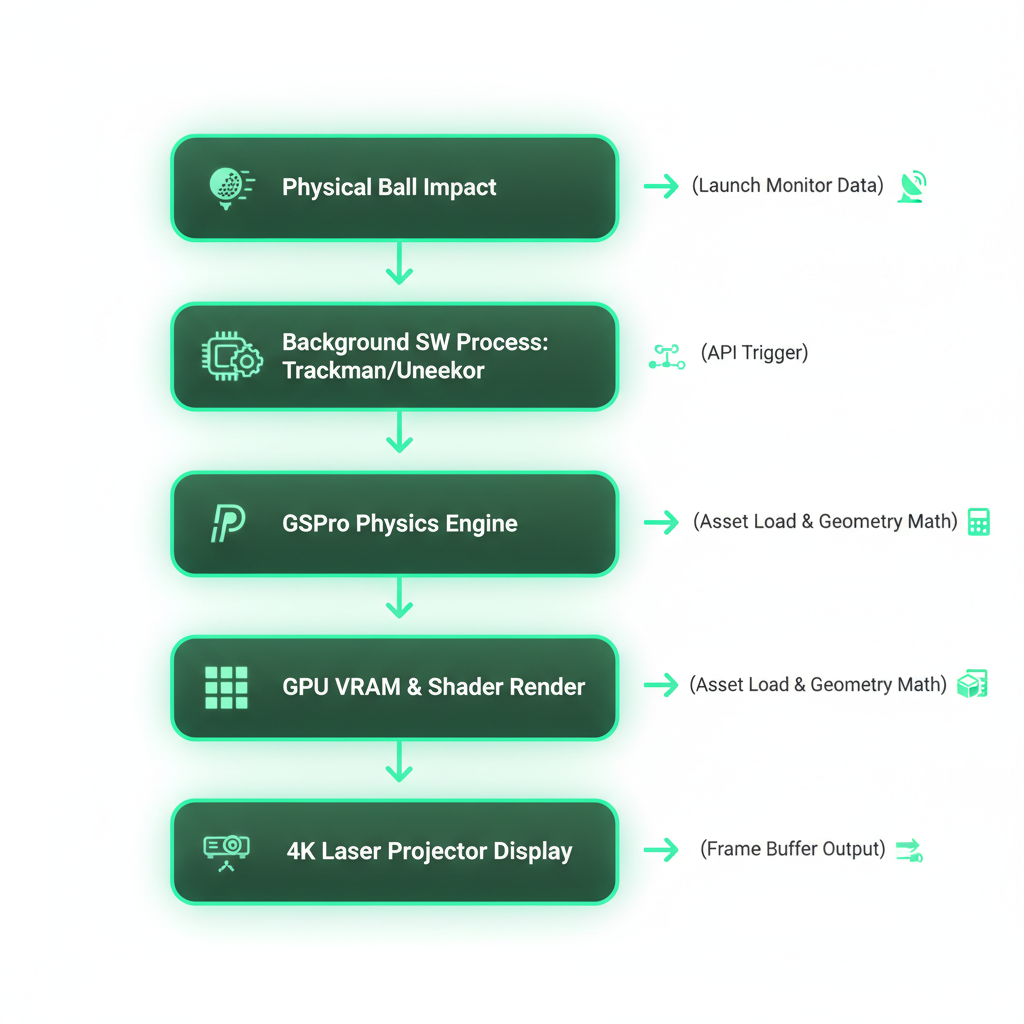
If your GPU stalls here, the physics freeze, the ball hangs in mid-air, and the customer in your $150/hour commercial bay starts asking for a refund.
The 2026 VRAM Mandate: Why Official Specs Sabotage Custom LiDAR Courses
GSPro’s official documentation lists mid-tier GPUs as sufficient. That guidance applies to stock, low-polygon training environments at 1080p—not the reality of modern simulation.
The core strength of GSPro is its user-generated course ecosystem built on high-density LiDAR scans. Courses like Whispering Pines load gigabytes of unoptimized 4K grass textures, dense foliage geometries, and complex spatial lighting maps into system memory.
An 8GB GPU runs flat, baseline courses fine. But load an unoptimized 4K LiDAR course? That 8GB frame buffer instantly saturates.
VRAM overflows.
Data swaps to system RAM over the PCIe bus.
The result? Catastrophic frame drops precisely when the clubface strikes the ball.
- 8GB VRAM: Obsolete for high-end 4K execution.
- 12GB VRAM: The absolute minimum floor for locked 1080p/1440p multi-display setups.
- 16GB+ VRAM: The non-negotiable enterprise baseline for 4K LiDAR course rendering in 2026.
The Swing-to-Screen Pipeline: Eradicating the 30ms Input Lag Penalty
Stop chasing average FPS. Average frame rates are a vanity metric that mask underlying instability.
A system averaging 90 FPS will deliver a garbage user experience if its 1% Lows dip to 20 FPS during complex collision calculations. When the virtual ball strikes high-density rough or water, render times spike. The visual stutters.
Visual Smoothness = Locked Refresh Rate – Frame Time Spikes (1% Lows)
To achieve true zero-perceived-latency, your 1% Low frame rates must remain locked at or above your display’s native refresh rate (60Hz or 120Hz). Frame delivery must be flat, predictable, and instantaneous.
The Hardware Reality: GPU Tiers for 4K / 120Hz
Underspec your hardware, and your entire $40,000 pipeline chokes at the finish line. Match your GPU selection directly to your visual output targets:
1. The 4K / 60Hz Enterprise Floor
- Target GPU: NVIDIA RTX 4070 Ti Super (16GB VRAM)
- Execution Capabilities: Delivers a locked 60 FPS on maxed-out LiDAR courses at 4K resolution. Maintains a clean safety net for 1% Lows without dipping into system RAM.
2. The 4K / 120Hz Commercial Standard
- Target GPU: NVIDIA RTX 4080 Super or RTX 4090 (16GB–24GB VRAM)
- Execution Capabilities: Essential for commercial lounges driving high-refresh 120Hz laser projectors alongside multi-screen kiosk displays. Eliminates input lag entirely.
The Peripheral Bottleneck: Surviving Swing Cameras and Touchscreens
Your GPU does not operate in an isolated bubble. High-end setups run multiple peripheral pipelines concurrently:
- Dual USB3 high-speed swing cameras (120 FPS–240 FPS video encoding)
- Launch monitor backend software (Uneekor View, Trackman TPS, or Foresight FSX)
- Secondary 1080p touchscreen kiosks and overhead swing analysis displays
Running multi-plane rendering pipelines across mixed resolutions introduces display timing delays. If your system shares bus bandwidth inefficiently, peripheral data polling will choke the GPU’s frame presentation.
- Isolate PCIe Lanes: Ensure your GPU runs on a dedicated PCIe 4.0/5.0 x16 slot directly attached to the CPU.
- Add Host Controllers: Install a dedicated PCIe USB 3.2 expansion card to segregate high-speed swing camera data from launch monitor data pipelines.
Execution Plan: What You Need to Do Today
- Audit Existing System VRAM: Run CapFrameX or FrameView during a round on a dense LiDAR course. If VRAM usage exceeds 90%, upgrade immediately.
- Standardize on 16GB VRAM Minimum: Do not purchase 8GB or 10GB GPUs for modern 4K simulation environments.
- Benchmark for 1% Lows: Tune your graphics settings until your 1% Low metric matches your projector’s target refresh rate (60Hz or 120Hz).
Over-engineer for peak asset load. Ignore the baseline minimums.
Up Next:
Optimizing Display Interfaces: DP 2.1 vs. HDMI 2.1 in Ultra-Short Throw 4K Laser Projection.
Questions about engineering your commercial or residential simulator control stack? Connect directly with our hardware team at GimmeGolfSim.